Introduction
In this blog, we’ll explore how SDDC Manager simplifies password management in VMware Cloud Foundation (VCF). SDDC Manager offers centralized control and automation for managing passwords across multiple VCF components, including ESXi hosts, NSX-T, vCenter Server, and even SDDC Manager itself. With SDDC Manager, you can perform essential password operations such as rotation, updates, and remediation for any component. Additionally, you can define policies to schedule password rotations or disable rotation policies as needed.
In this blog, we’ll walk through the following activities in SDDC Manager:
- Password Lookup: Retrieve passwords for VCF components using the SDDC Manager CLI.
- Password Rotation: Rotate passwords for all users in NSX-T via the SDDC Manager UI.
- Password Update: Update the password for the NSX-T admin user using the SDDC Manager UI.
- Password Remediation: Remediate the password for the NSX-T admin user through the SDDC Manager UI.
Retrieve password for local users in SDDC Manager via Lookup_passwords
During Day 2 operations, VCF administrators may need to retrieve passwords for local users across various VCF components, such as ESXi hosts, NSX-T, vCenter Server, and more. SDDC Manager simplifies this task with its lookup_passwords command, which allows administrators to easily retrieve passwords for these components.
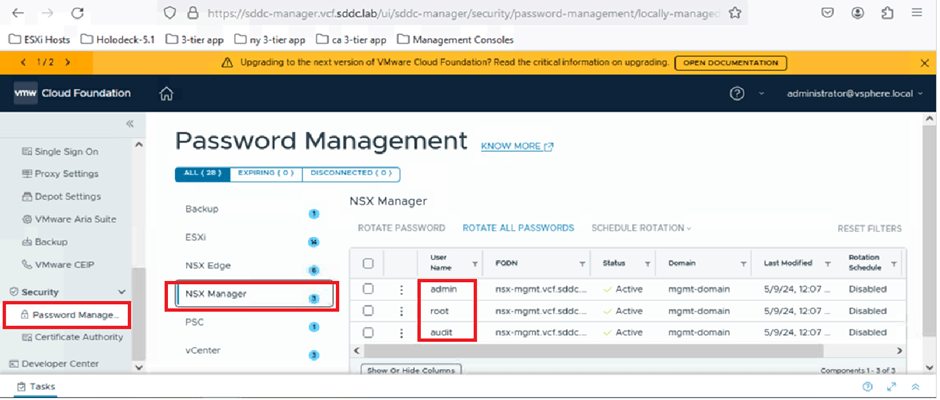
In our environment, we’ve deployed VCF with a Management Domain only. For this blog, we’ll focus on retrieving the password for the NSX-T Manager. SDDC Manager handles passwords for key user accounts, including admin, root, and audit. Below, you’ll find a screenshot that highlights user details in the SDDC Manager UI for reference.
To retrieve passwords, the VCF administrator must log in to the SDDC Manager CLI using their VCF credentials and execute the appropriate command. In the screenshot below, we’ll demonstrate how to retrieve the password for the NSX-T Manager.
Note: These commands are case-sensitive, so please ensure accuracy when entering them.
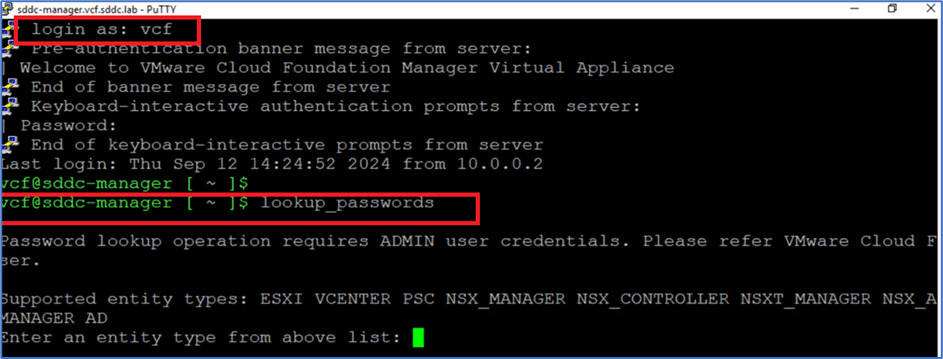
Next, enter NSXT_MANAGER as the entity type to proceed. Once you’ve entered a valid entity type, you’ll be prompted to provide the SDDC Manager administrator credentials.
Note: You can ignore the input prompts for other options during this process.

Once the credentials are provided, the system will retrieve passwords for all three user accounts (admin, root, and auditor) associated with the NSX-T Manager.

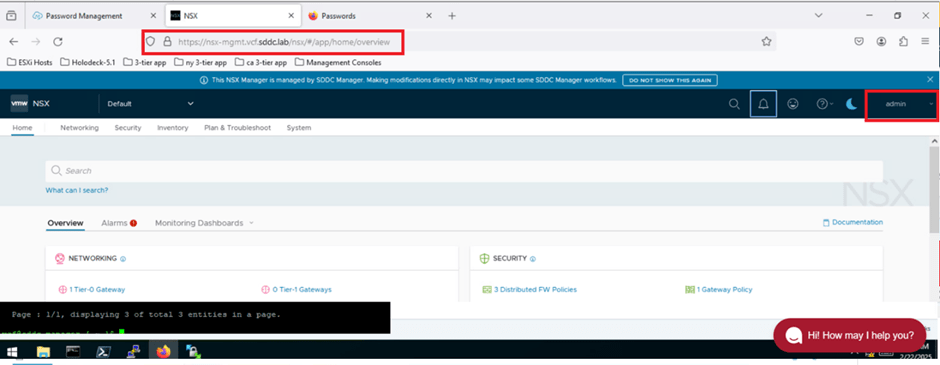
Next, we’ll validate that we can successfully log in to the NSX-T Manager UI using the admin credentials shown in the previous screenshot.
As highlighted in the screenshot above, the identifier nsx-mgmt.vcf.sddc.lab is listed. We’ll use this URL to access the NSX-T Manager. Open a web browser and enter the following URL:
Then, enter the admin credentials and click LOG IN:
- User: admin
- Password: VMware123!VMware123!
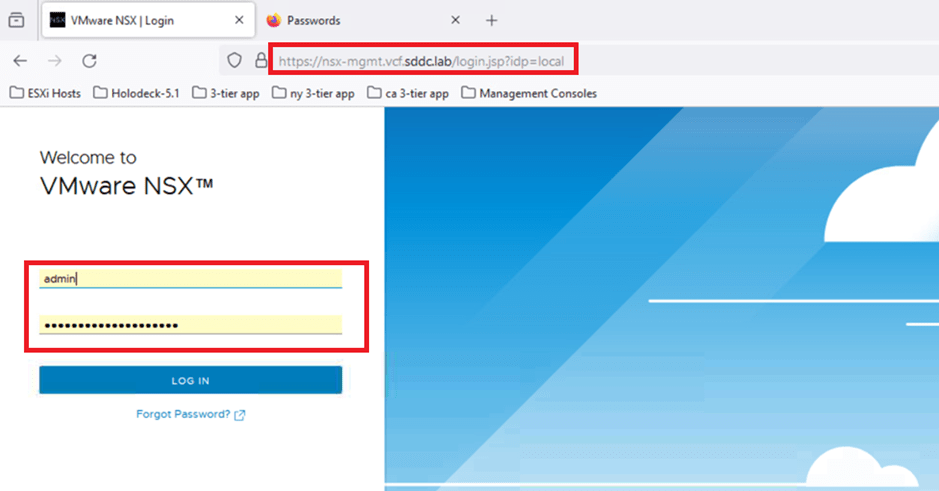
We are able to login into NSX T Manager UI.
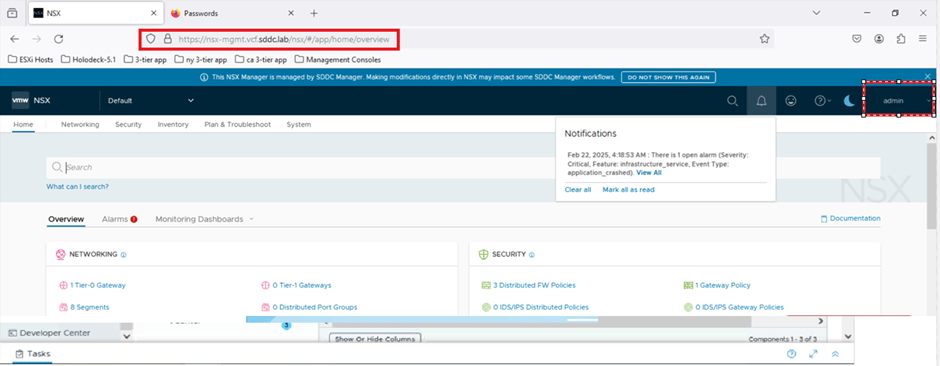
Refer to the screenshot below to verify that the credentials have been successfully saved in the browser.

Password Rotation for All or Multiple Users
The VCF administrator can perform various password management activities directly from the SDDC Manager UI, such as rotating all passwords, updating individual passwords, scheduling rotations, and more. To explore these options, follow these steps:
- Log in to the SDDC Manager UI.
- Navigate to Security in the left-hand menu.
- Click on Password Management.
- Select NSX Managers to view password details.
In the screenshot below, you can see that SDDC Manager is managing passwords for three users (admin, audit, and root) for the NSX instance with the FQDN nsx.mgmt.VCF.SDDC.lab. The status for these users is shown as active, indicating that SDDC Manager and the NSX component are in sync. If they were out of sync, the status would display as disconnected.
In the next column, you can identify the workload domain. In our environment, we’re working with the Management Domain (mgmt-domain).
The following column shows that the rotation schedule is currently disabled, meaning no automated rotation is configured. By default, SDDC Manager provides the option to rotate all passwords. The VCF administrator can simply click this option to rotate passwords for all users associated with the NSX-T Manager.
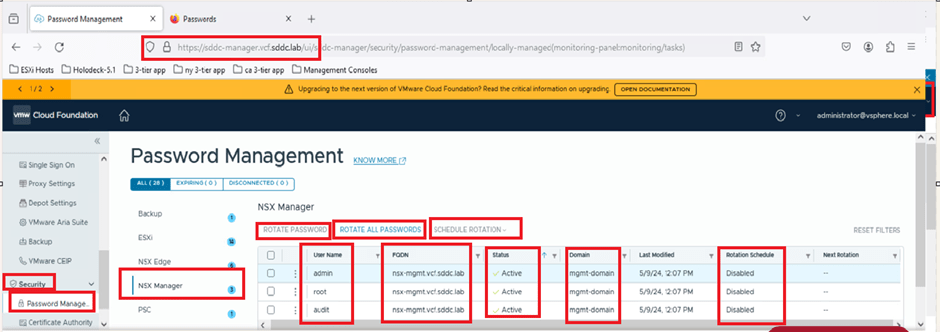
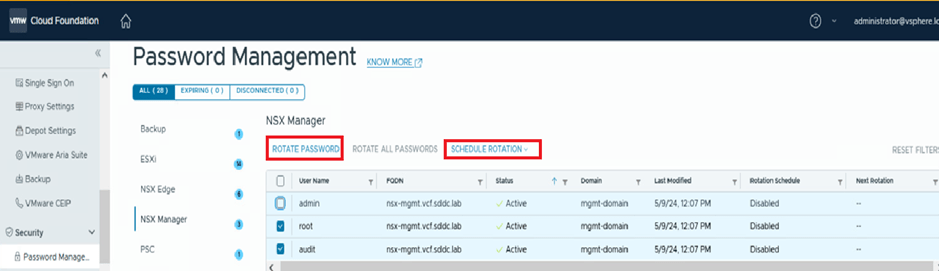
For all or multiple selected users, the VCF administrator can perform two key activities: rotate passwords and schedule password rotations.
In the screenshot below, you can see that we’ve selected the root and audit users. SDDC Manager enables the options to ROTATE PASSWORD and SCHEDULE PASSWORD for these users. However, the ROTATE ALL PASSWORDS option is disabled in this scenario.
Rotate all password for NSX users from SDDC manager UI
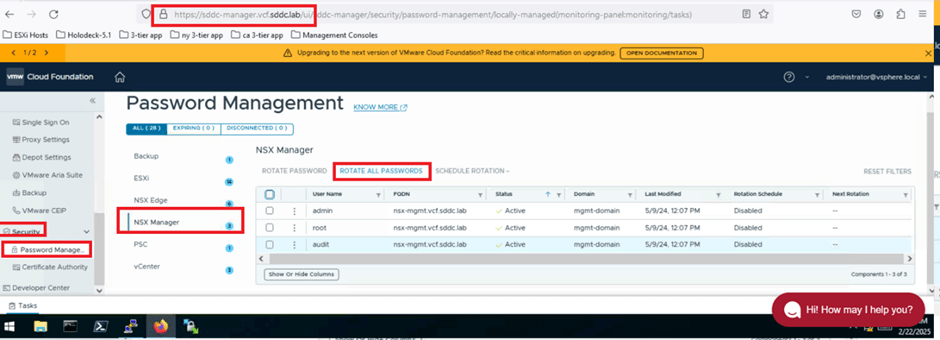
Now, we’ll rotate passwords for all NSX users directly from the SDDC Manager UI. In the previous activity, we retrieved the password (VMware123VMware123!) using the lookup_passwords command. Next, we’ll click on ROTATE ALL PASSWORDS and retrieve the updated passwords for the NSX users. Afterward, we’ll log in to the NSX UI to validate that the password rotation was successful.
Here’s how to perform this task:
- Log in to SDDC Manager.
- Navigate to Security in the left-hand menu.
- Click on Password Management.
- Select NSX Manager.
- Click on ROTATE ALL PASSWORDS.
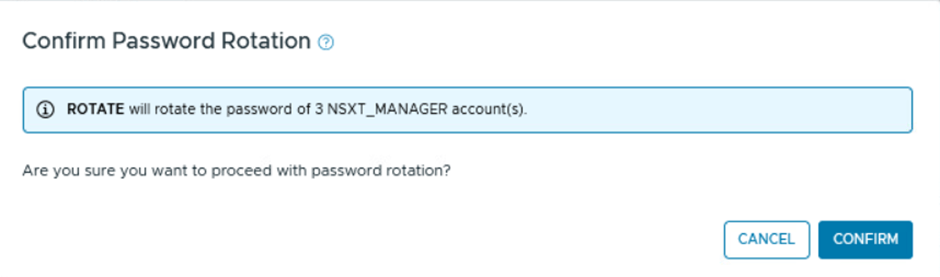
The system will prompt you to confirm the password rotation for all users. Click CONFIRM to proceed.
Expand the Tasks bar in the SDDC Manager UI to view detailed information about the activity.
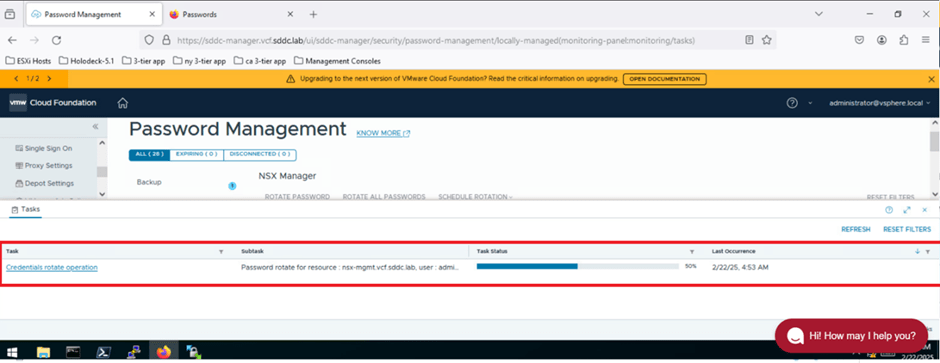
Next, we’ll log in to the SDDC Manager CLI and retrieve the updated passwords using the lookup_passwords command.
- Log in to the SDDC Manager CLI using your VCF credentials.
- Run the lookup_passwords command and enter NSXT_MANAGER as the entity type.
Refer to the screenshot below to confirm that the passwords for all NSX users have been updated to a system-generated password. Previously, the password for all users was VMware123!VMware123!.
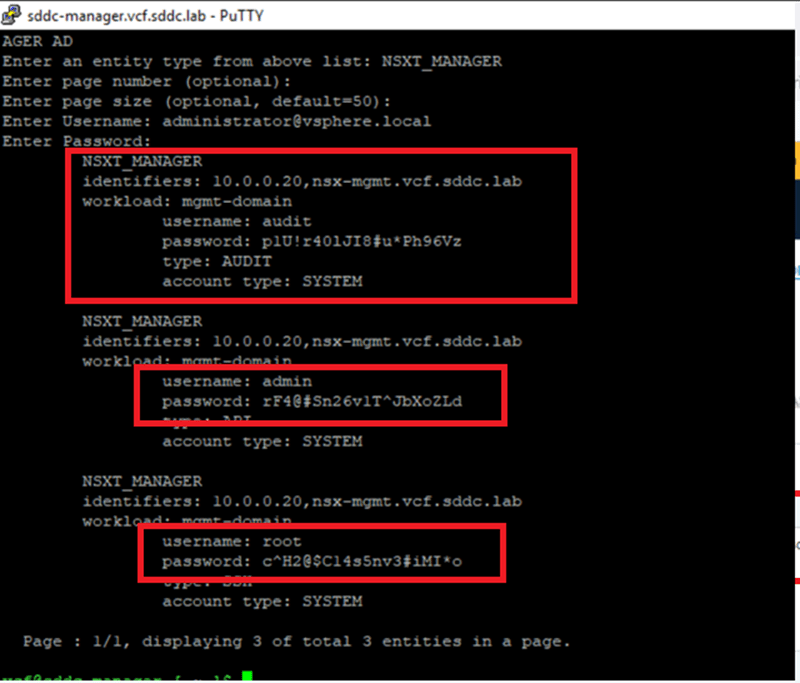
Now, we’ll validate that we can log in to the NSX UI using the recently updated password (shown in the previous screenshot).
- Open a web browser and enter the URL: https://nsx-mgmt.vcf.sddc.lab.
- Attempt to log in with the old password (VMware123!VMware123!). This login attempt should fail, confirming that the password has been successfully changed.
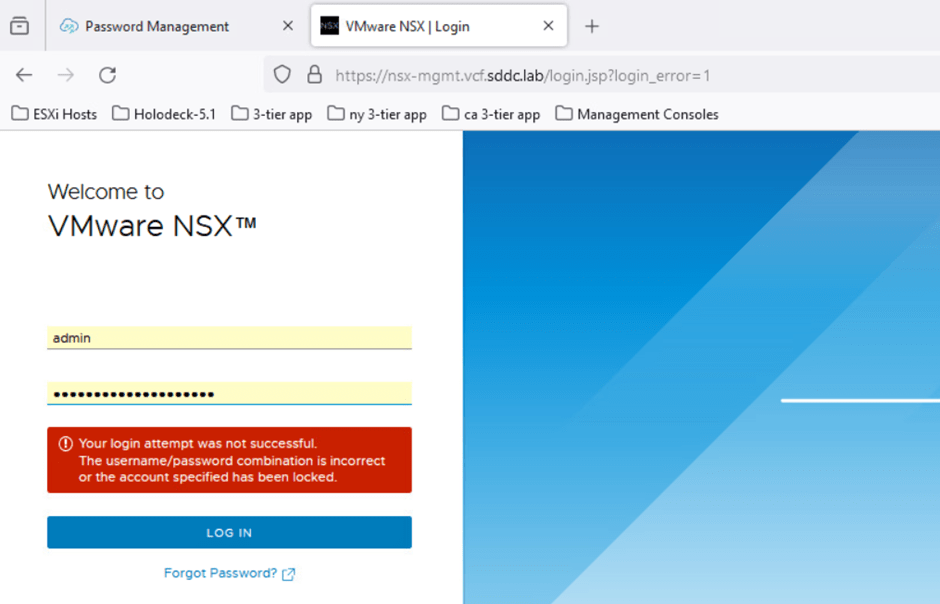
Next, we’ll update the password in the browser and revalidate the login.
Refer to the screenshot below, where we’ve entered the new password in the browser.
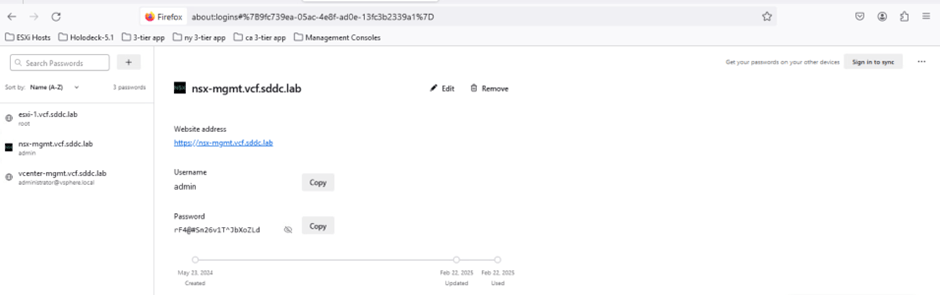
We’ve now successfully validated that we can log in to the NSX UI using the new password.
SCHEDULE ROATION for password in VCF
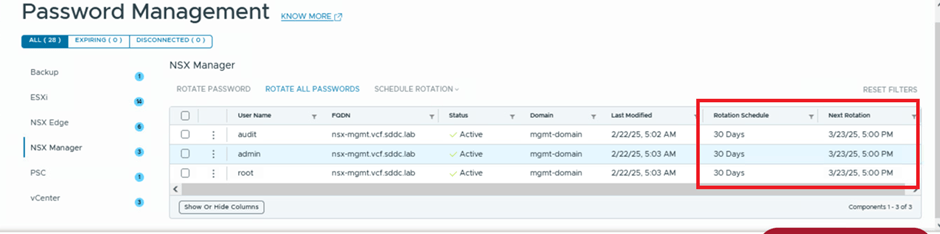
The VCF administrator can enable a policy to schedule password rotations based on their organization’s compliance requirements. SDDC Manager offers predefined intervals of 30, 60, and 90 days for scheduling password rotations. By default, the schedule rotation feature is disabled.
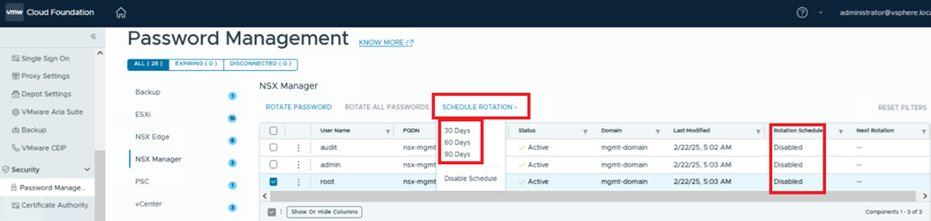
You can enable this feature for a single user or multiple users. In this blog, we’ll enable the schedule for all NSX users.
- Select all NSX users.
- Click on SCHEDULE ROTATION.
- Choose the 30-day interval.
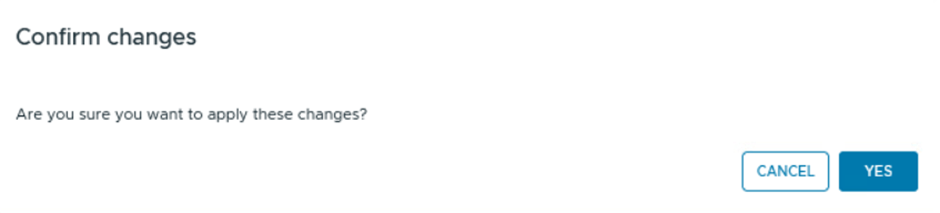
- The system will prompt you to confirm the action.
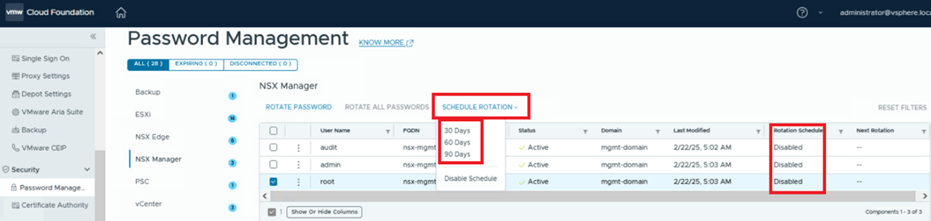
It will take approximately 1 minute to enable this policy. Once completed, you can verify that the password rotation schedule for NSX users is now set to 30 days, and the Next Rotation date has been updated accordingly.
Managing Passwords for a Single User in SDDC Manager
SDDC Manager offers three key operation tasks for password management for a single user: Rotate, Update, and Remediate.
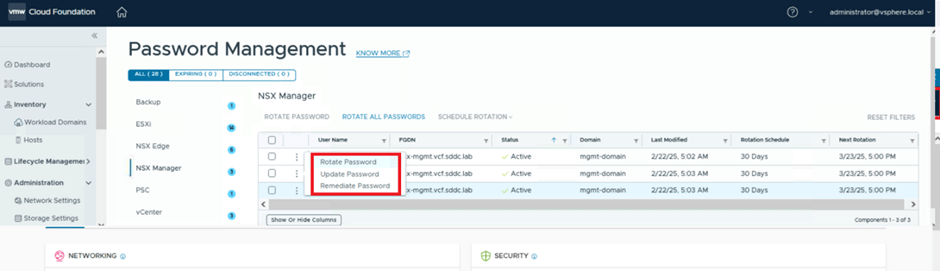
Rotate Password:
SDDC Manager will rotate the password for a specific user, generating a random password that adheres to SDDC Manager’s password complexity requirements.
Update Password:
The VCF administrator can manually update the password for a specific user. Instead of using a system-generated random password, the administrator can set a custom password of their choice. SDDC Manager will then sync this password with the respective component.
Remediate Password:
This option allows the VCF administrator to update the password directly in SDDC Manager. For example, if the password was changed at the component level (outside of SDDC Manager), the credentials may fall out of sync. The Remediate option ensures that the component’s password is updated and synchronized within SDDC Manager.
Now, let’s validate all three features—Rotate, Update, and Remediate—for the NSX-T Manager admin password. We’ll start by retrieving the current NSX user password using the lookup_passwords command in the SDDC Manager CLI.
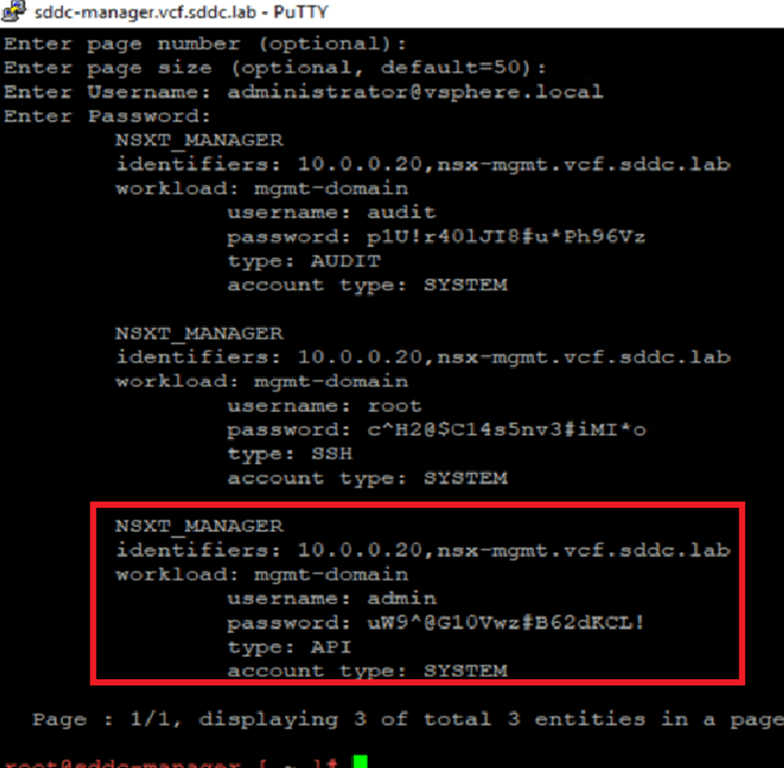
Refer to the highlighted window below to track the admin user password throughout this process.
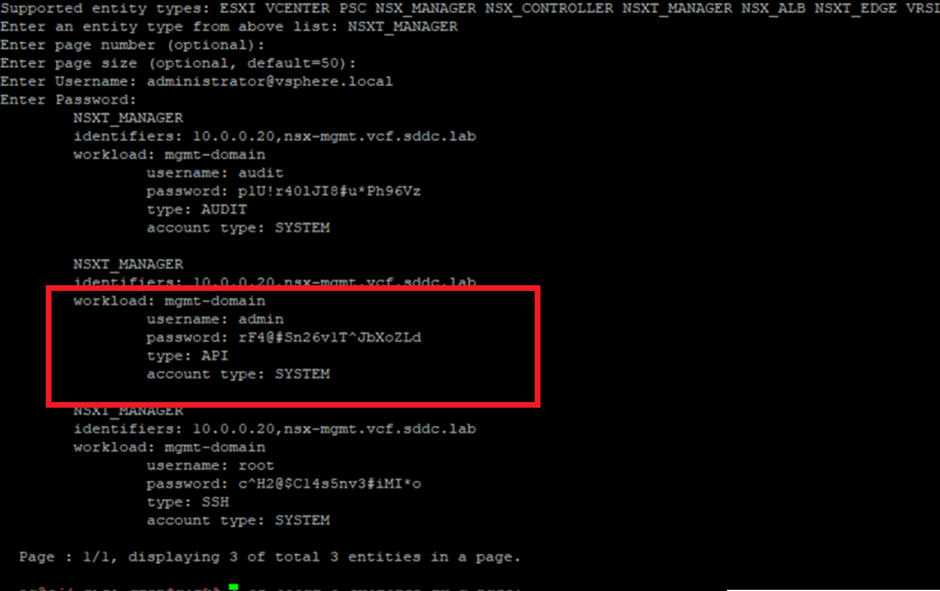
Next, we’ll rotate the password for the admin user only using the SDDC Manager UI.
- Log in to SDDC Manager.
- Navigate to Security and click on Password Management.
- Select NSX Manager.
- Choose the admin user.
- Click on the three vertical dots (options menu) and select Rotate.
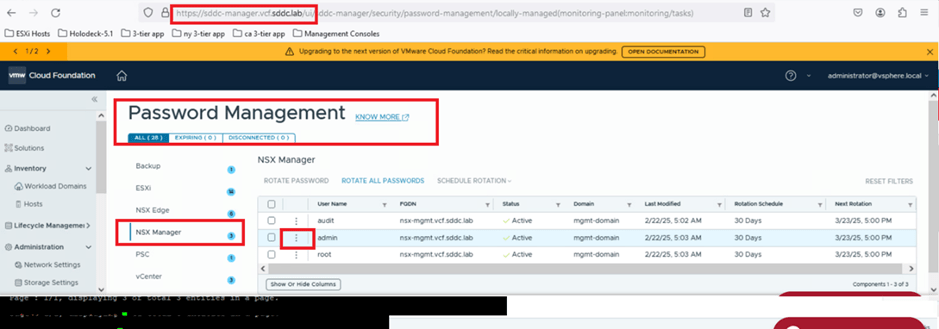
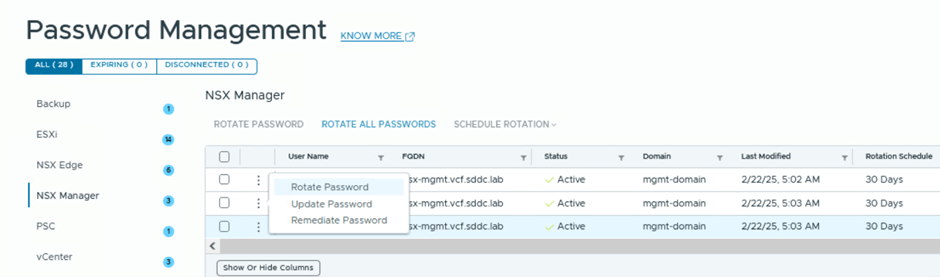
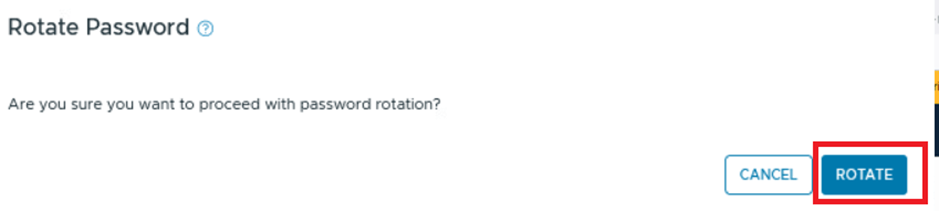
The system will prompt you to confirm the task. Click ROTATE to proceed.
The system will take approximately 1 minute to complete the task. Once done, we’ll validate that the password for the admin user has been successfully changed. Note that the passwords for the other two users (root and audit) remain unchanged.
Now, we’ll validate that we can log in to the NSX UI using the new password. We’ve already updated the new password in the browser for this purpose.
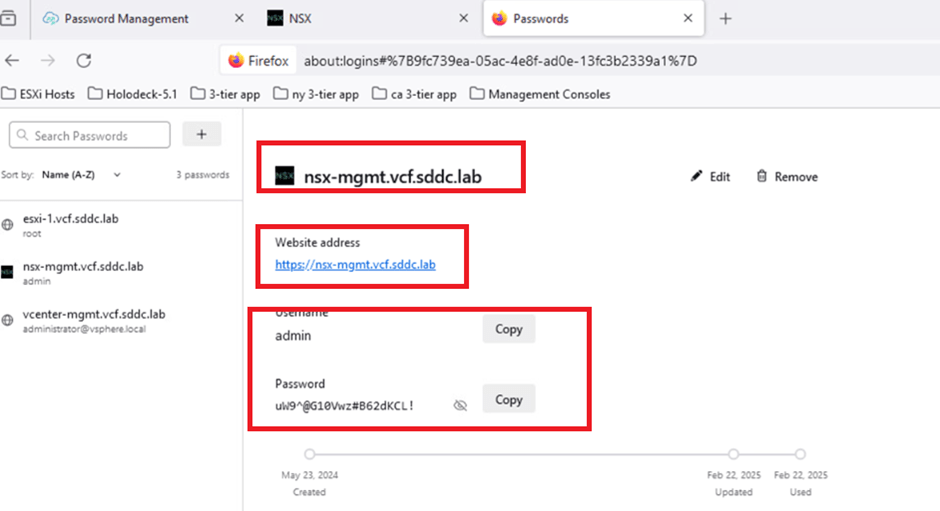
Now we will login to NSX UI with updated password
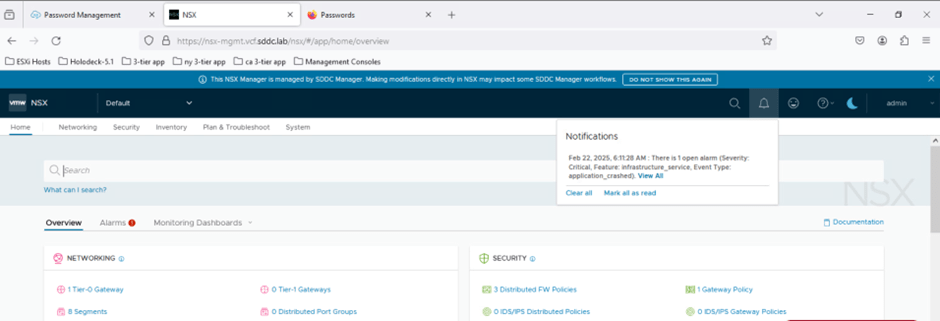
Update Password in SDDC Manager
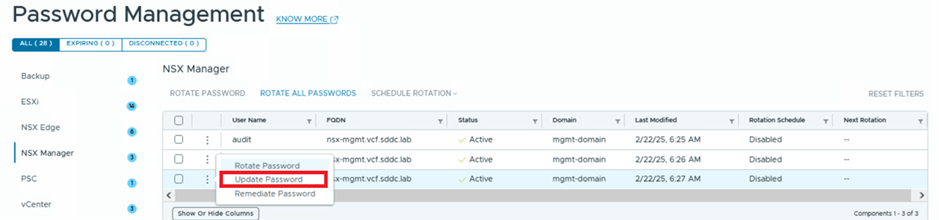
We will now test the password update feature for the admin user. The admin user’s password will be updated to “VMware123!VMware123!”, and we will then verify the password change.
To update the password, select the admin user, click on the three vertical dots, and choose the “Update Password” option.
A new window will appear, and on this screen, enter the new password you wish to set.
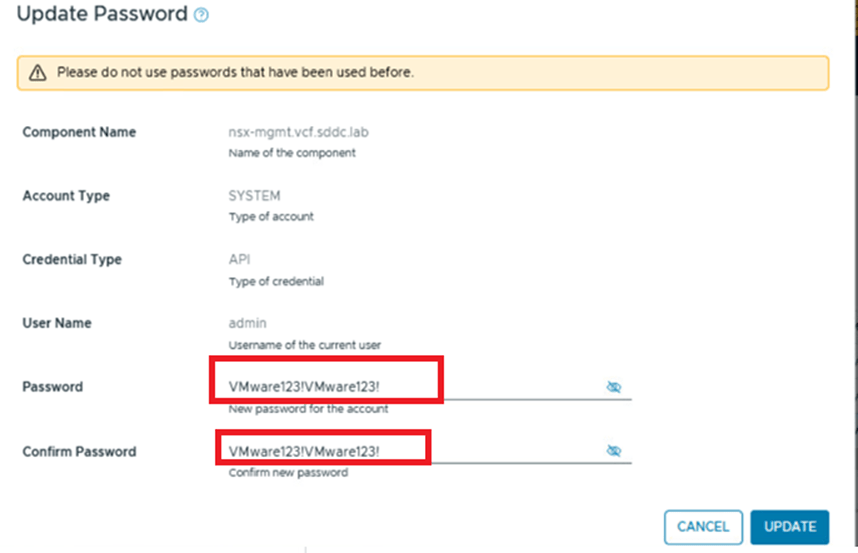
Click on UPDATE to confirm the password change.
The system will take approximately a minute to process the password update. Once completed, we will retrieve the password using the SDDC Manager CLI to verify that the admin user’s password has been successfully updated in the SDDC.
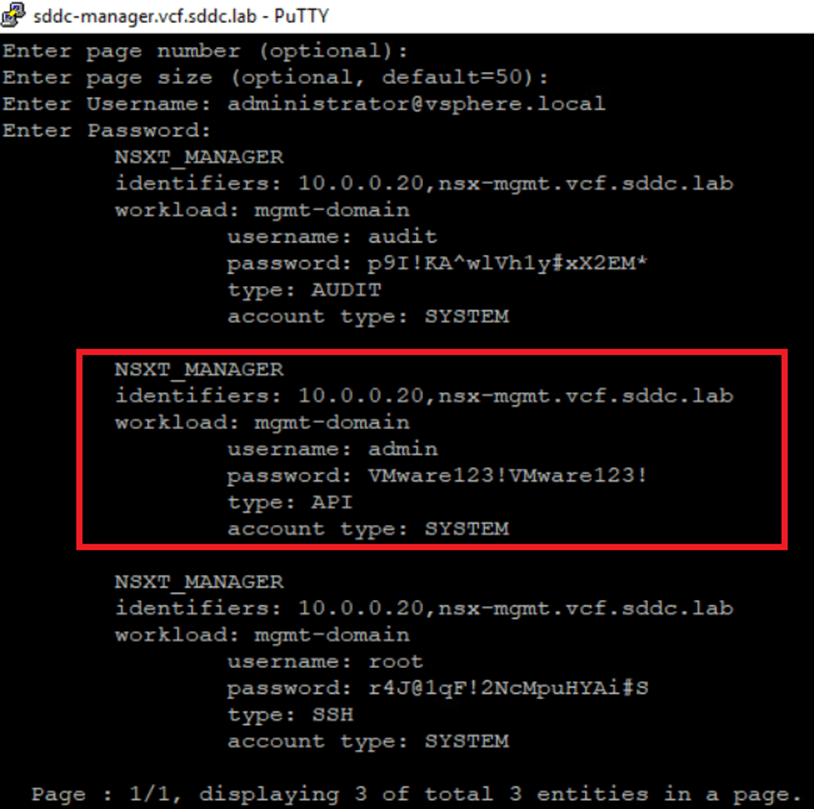
Next, we will verify that we can log in to the NSX Manager UI using the updated password.
As shown in the screenshot below, the password has been updated in the browser.
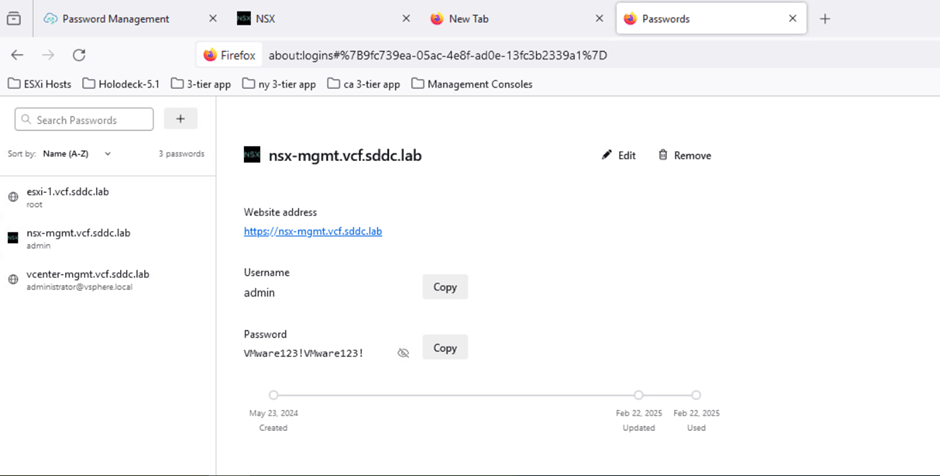
we will login to NSX Manager UI with new password to validate credentials.
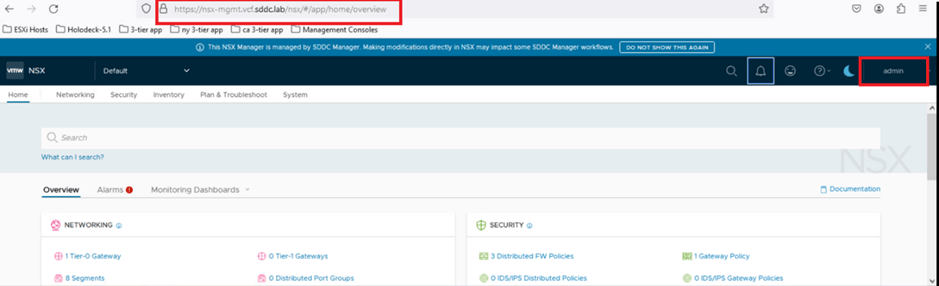
Remediate password for NSX admin user in VCF
Now, we will test the Remediate Password feature. Consider a scenario where an administrator has changed the password for the NSX admin user directly in NSX, either due to password expiration or by mistake. In such a case, the SDDC Manager database will not be synchronized, causing the status of the NSX admin user in SDDC Manager to change to “disconnected.”
To resolve this, a VCF administrator can use the Remediate feature to update the password in SDDC Manager and restore synchronization. Let’s perform this activity in our environment.
We will first change the password for the admin user in the NSX Manager CLI and then update SDDC Manager to ensure synchronization.
To change the password in the NSX Manager CLI, log in to the CLI and set the user password as shown in the screenshot below. For this test, we have updated the password to VMware123@VMware123@.
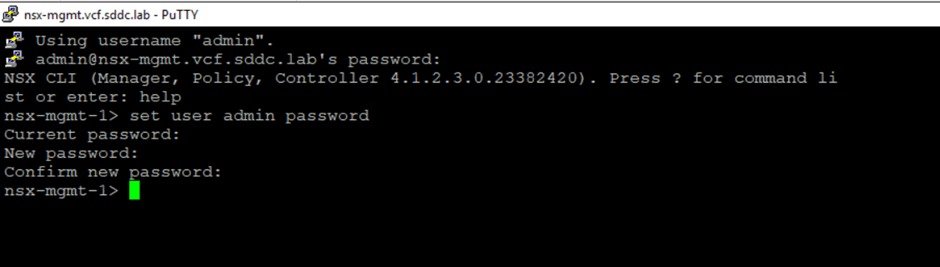
Now we will validate that NSX UI is accessible with new password
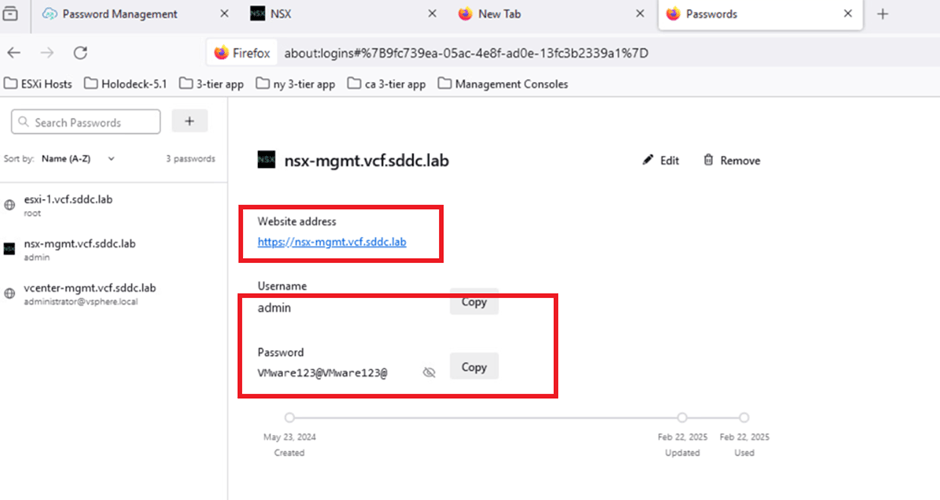
Now we will validate that NSX UI is accessible
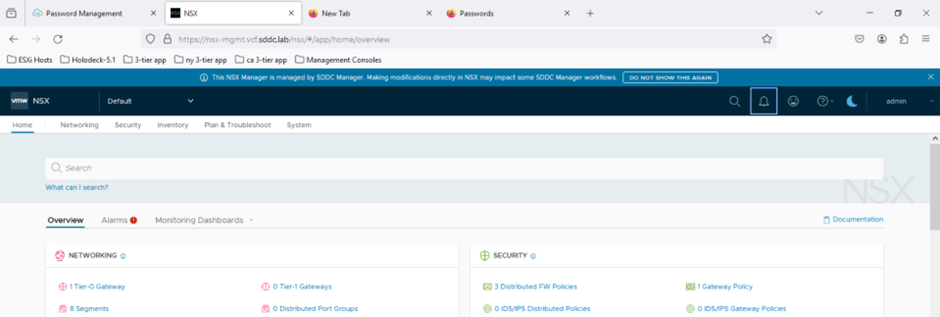
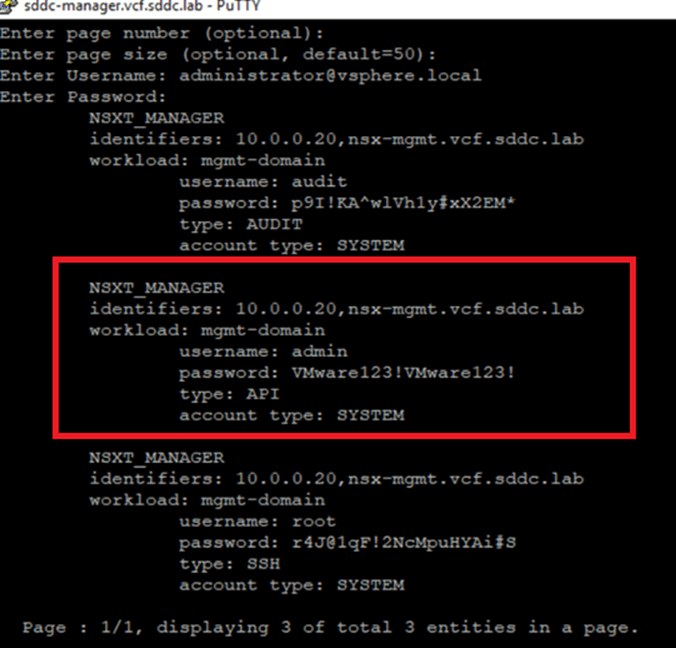
Next, we will retrieve the password from the SDDC Manager CLI and verify that SDDC Manager still holds the old password (VMware123!VMware123!) for the admin user credentials.
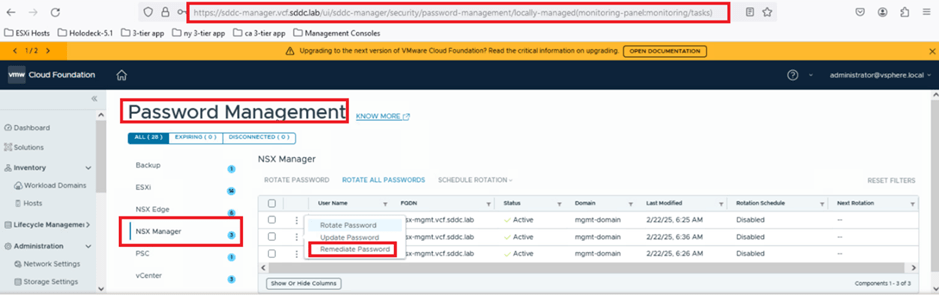
Now, we will remediate the password in the SDDC Manager UI to synchronize the SDDC database with the component.
To do this, log in to SDDC Manager, navigate to Password Management under Security, select NSX Manager, click on the admin user, and then choose REMEDIATE PASSWORD.
The system will open a new window prompting you to update the password.
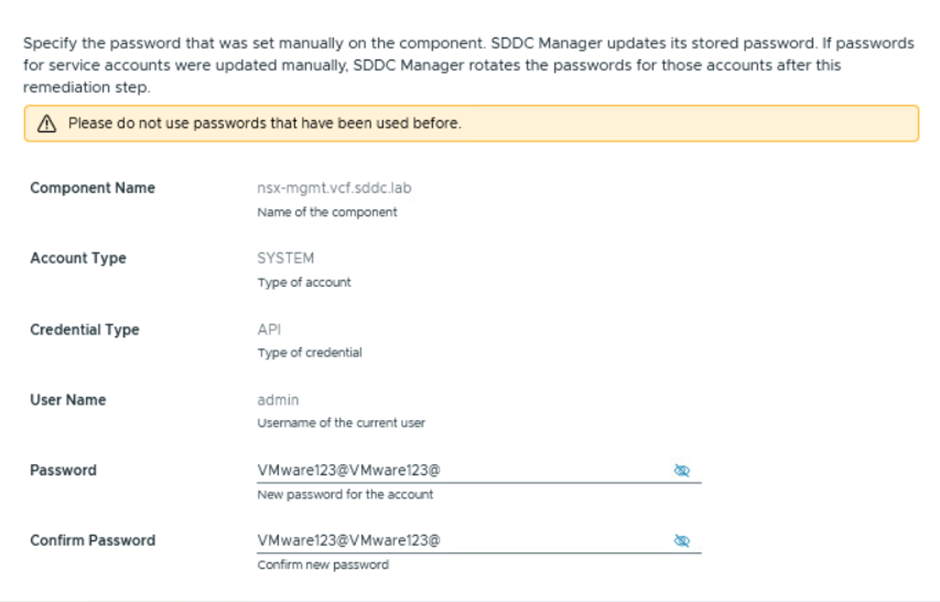
Click on REMIDIATE PASSWORD
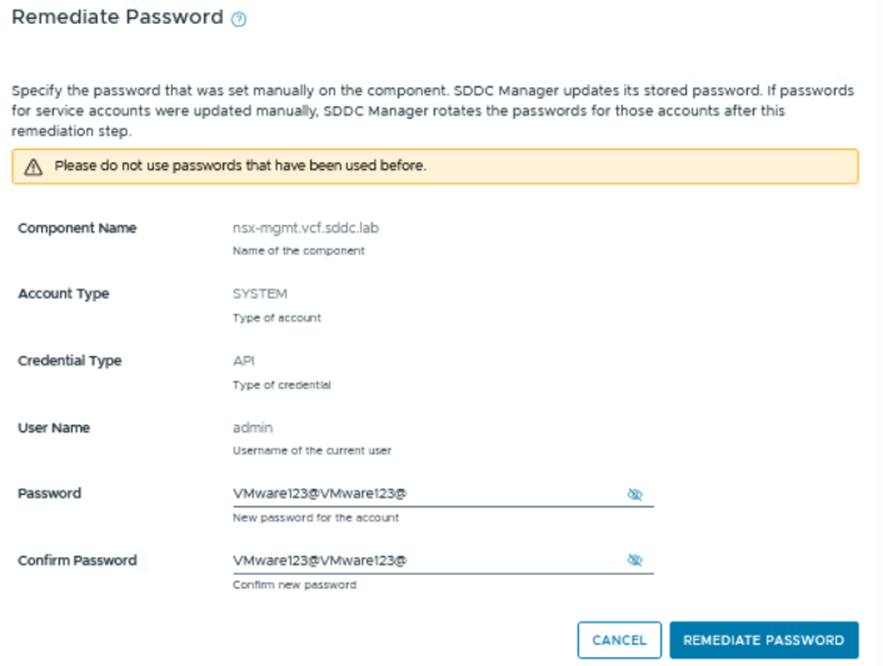
The system will take approximately a minute to process the password update.
Conclusion
“In this blog, we explored key Day 2 operations for password management in a VMware Cloud Foundation (VCF) environment, including password retrieval, scheduled password rotation, bulk password rotation, and remediation workflows. These activities are critical for maintaining security and operational efficiency in modern infrastructure. Stay tuned for future posts where we’ll dive deeper into VMware technologies, best practices, and advanced automation strategies!”

 Welcome to Bytestuffs.com
Leave a comment