Introduction
In this blog, we will deploy NSX-T Edge Cluster in VMware Cloud Foundation (VCF) environment. VCF is multicloud platform that provides hyperconverged infrastructure for Modernizing datacentres and container-based applications. The Three key components of VCF are vSphere, NSX & VSAN. VCF segregate Management and application VMs with domains Management and Workload respectively. During initial bring up process, SDDC manager, vCenter, NSX-T Managers & VSAN gets deployed in Management domain.
VCF use NSX-T datacentre to provide networking in SDDC datacentre. In NSX-T datacentre, Tier-0 and Teir-1 routers are logical components to facilitate routing and other network service. To deploy Tier-0 Router in NSX-T Edge cluster is mandatory. Tier-0 router provides connectivity with Physical infrastructure with supported routing protocols BGP, OSPF and static.

Figure 1 : Edge logical Diagram
In VCF environment , Edge cluster can be deployed from SDDC manager from GUI or API. Prior to deploy edge cluster in VCF , several pre-requisites needs to be fulfilled like NSX-T edge size consideration, Routing protocol , Edge TEP VLAN ID , Logical router naming conventions.
Note: During planning and preparation worksheet preparation all above requirements get fulfilled.
SDDC manager workflow perform several pre-checks before initiating Edge cluster deployment like BGP neighborship validation, Edge VM FQDN validation, etc.
Topology overview
In this Blog, we will deploy NSX-T edge cluster in management
domain to deploy AVN overlay network. It is mandatory to deploy minimum 2
edge VMs While deploying Edge cluster from SDDC manager , and below NSX objects get created during deployment
- NSX-T Edge VMs
- NSX-T VLAN backed transport zone for Edge Nodes
- Overlay Transport Zone
- Uplink segments for Edge Node (VLAN backed)
- Trunk dVpg in VDS
- Tier-0 and Tier-1 router
- NSX-T Edge cluster
Please refer below diagram for edge node detialed information.

Figure 2 : Edge VM Networking
Edge Cluster Deployment
In this blog, we will deploy edge cluster in Management domain via SDDC manager GUI. Please follow below steps.
Login to SDDC manager UI with administrator account and click on workload domain and select Management domain.
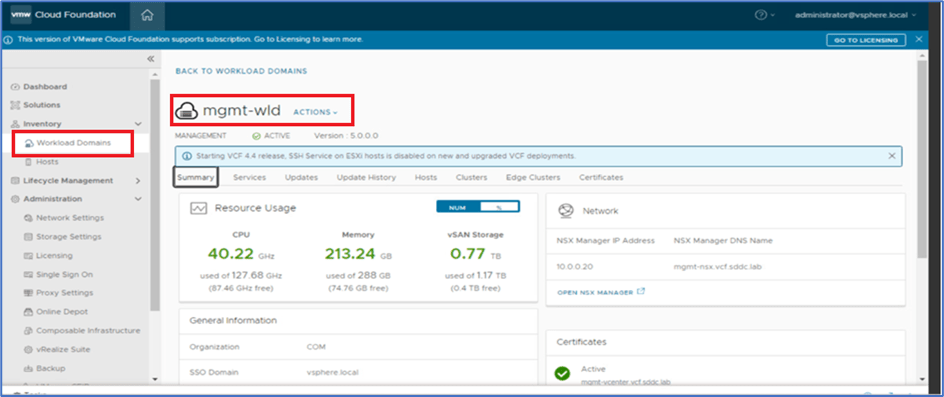
Figure 3 : Select Workload domain.
Validate that Edge cluster is not deployed by clicking on Edge cluster.

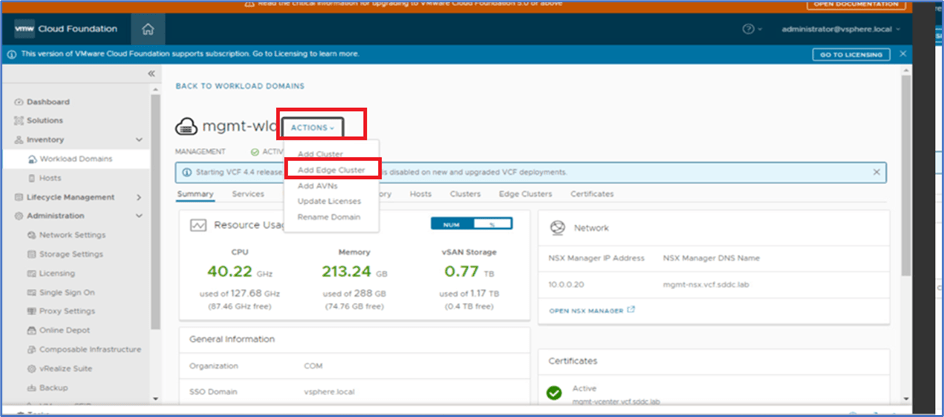
Figure 5 : Click on Add Edge Cluster
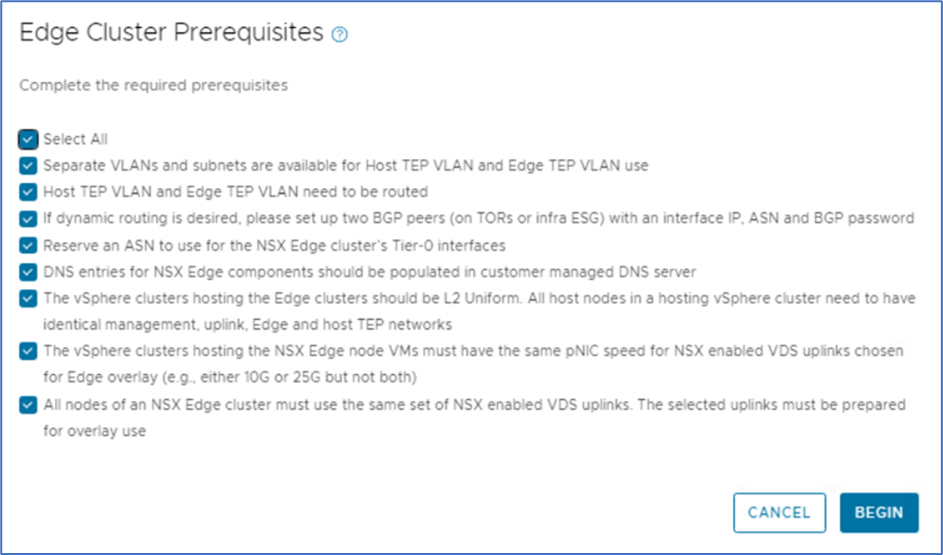
New window will pop-up for prerequisites checklist for Edge cluster deployment . All requirements must be fulfilled else deployment will get failed in validation stage.
Select all checkbox and click on BEGIN.
Edge Cluster Name :
MTU :
Tier-0 Router Name :
Teir-1 Router Name:
Edge Cluster Profile type : Custom or default
Password for Root , admin and audit account
Note : Edge Cluster profile type support 2 option Custom and default. Select Customer If you want to modify BFD and other parameter at cluster level. We will use Default profile in this deployment.
After adding all details click on Next
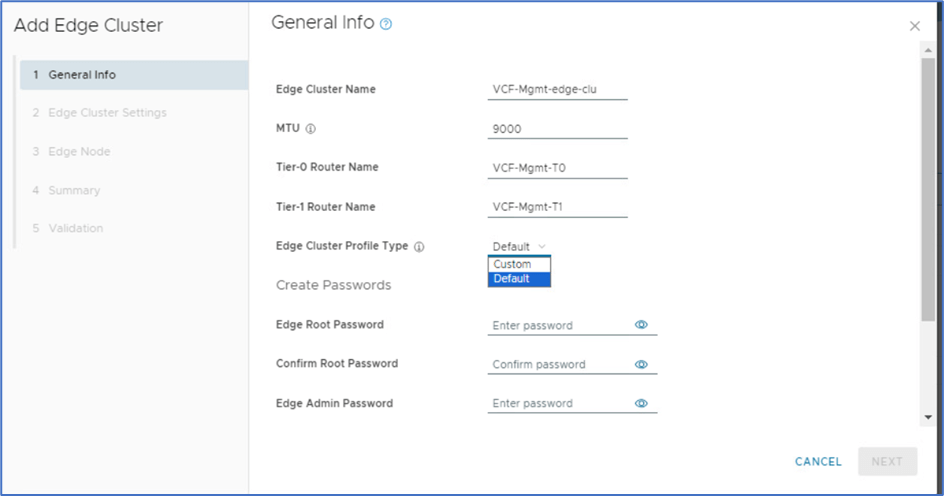
Figure 7 : Edge Configuration
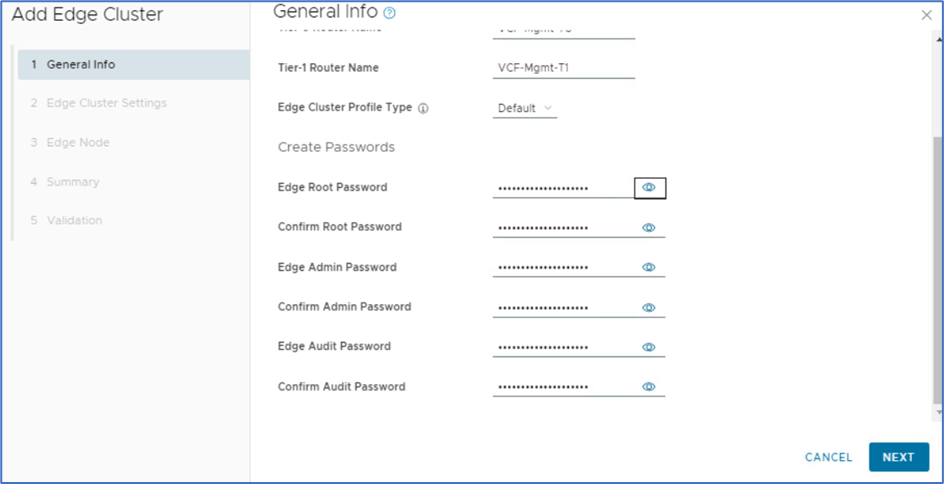
Figure 8 : Passwords for Edge Configuration
Click on NEXT to process for next screen Edge cluster setting. In this screen, you have to choose Edge cluster deployment use case which determines Edge VM form factor & Tier-0 HA , Routing protocol decision ( Static or Dynamic)
In this blog, we are deploying Edge cluster for Management domain so we will choose Application Virtual Network (AVN) which will configure Medium size VM and Active-Active Tier-0 HA.
Available EDGE Form Factors: Small , Medium , Large , Xlarge
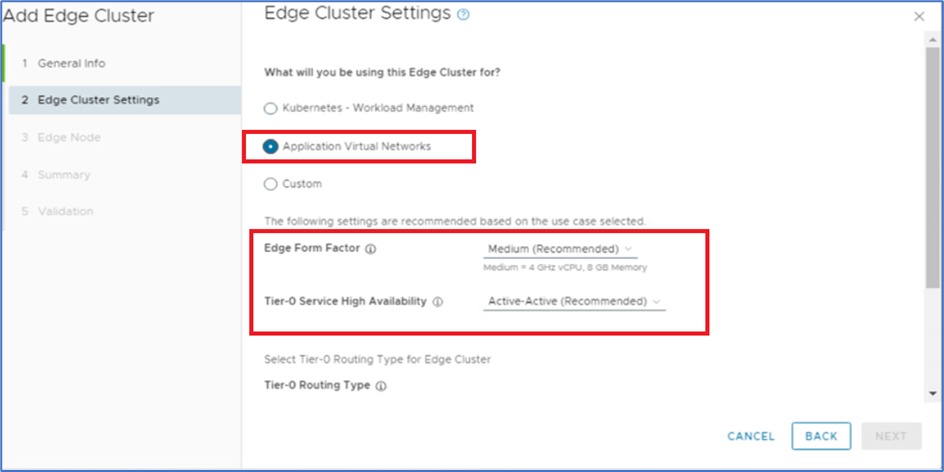
Figure 9 : Edge Node Sizing
Note : Custom option give flexibility to choose Edge VM sizing and Tier-0 HA as per business requirement.
Scroll down and select Tier-0 routing type (Static or EBGP). In this blog, we will be using BGP and we have to provide NSX-T ASN.
Note : VCF also support OSPF as dynamic routing protocol but this require additional configuration.
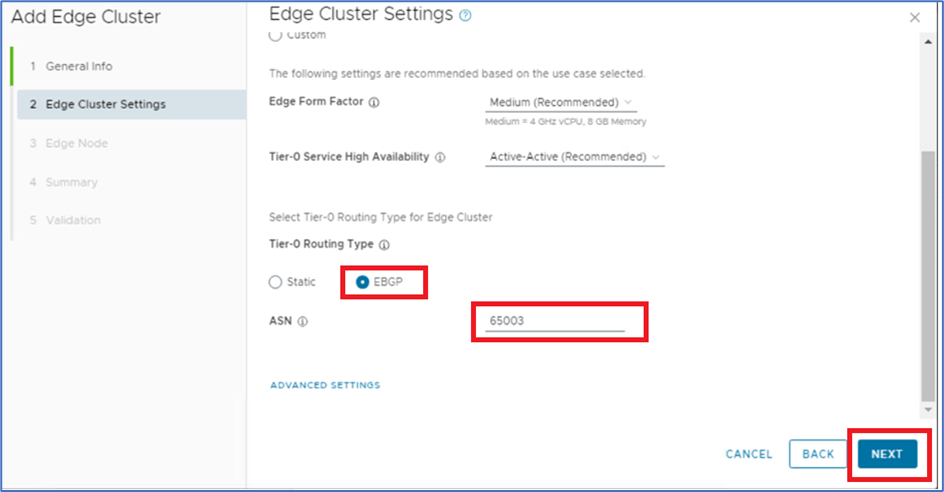
Figure 10 : Routing Configuration
Note : Click on ADVANCED SETTING if you want to edit Internal transit subnet and T0-T1 Transit subnet. We are not modifying any configuration so skipping this option.
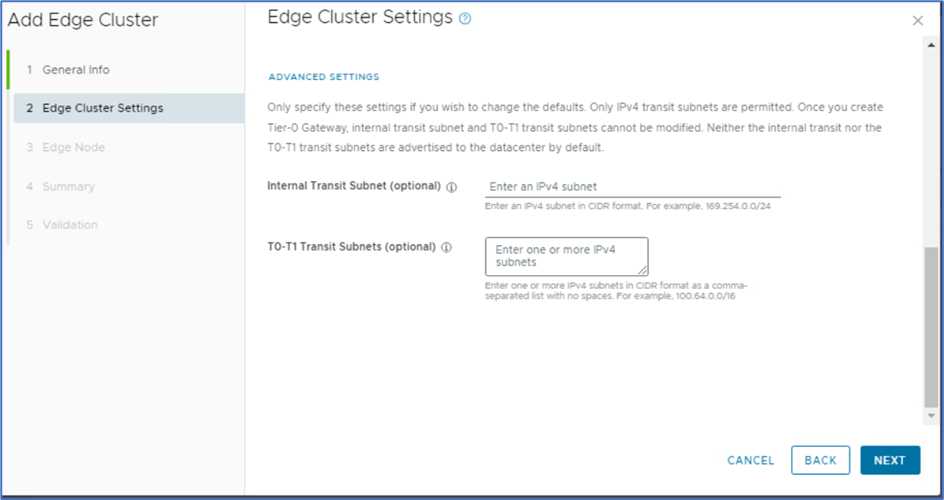
Figure 11 : Advance Edge Cluster configuration.
Click on NEXT to process next screen to provide Edge VM Node details which include Node FQDN, Compute cluster, Management IP , TEP IP , Uplink Interface and VLAN & BGP Peering information.
Note: SDDC workflow configure EDGE Nodes with those details.
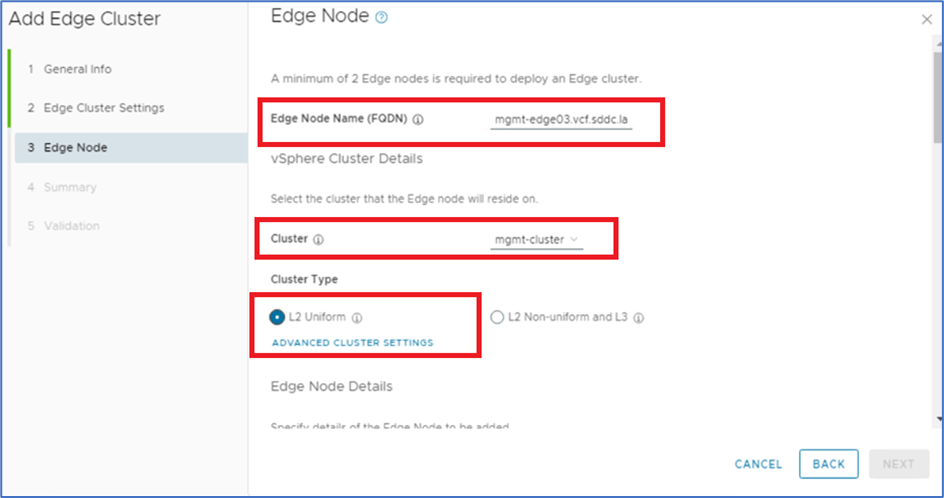
Figure 12 : Edge VM Configuration

Figure 13 : Edge VM Configuration
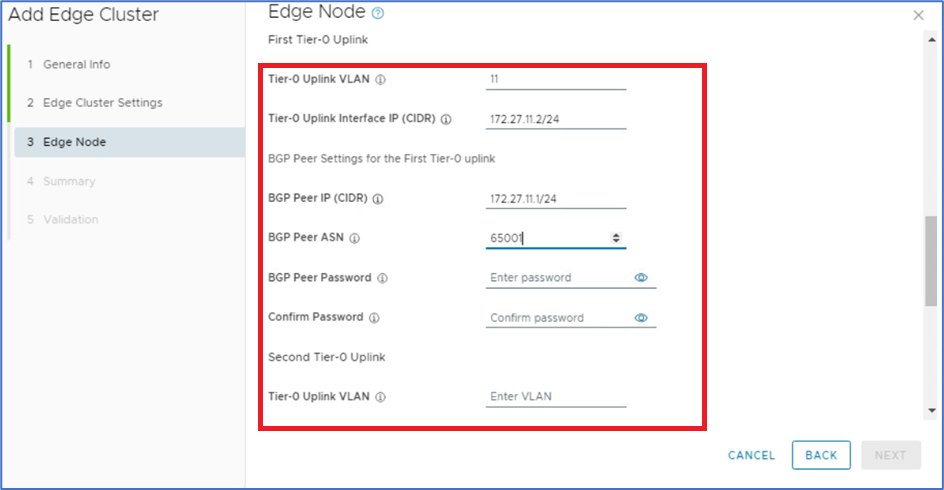
Click on ADD EDGE NODE to save configuration for first Edge Node
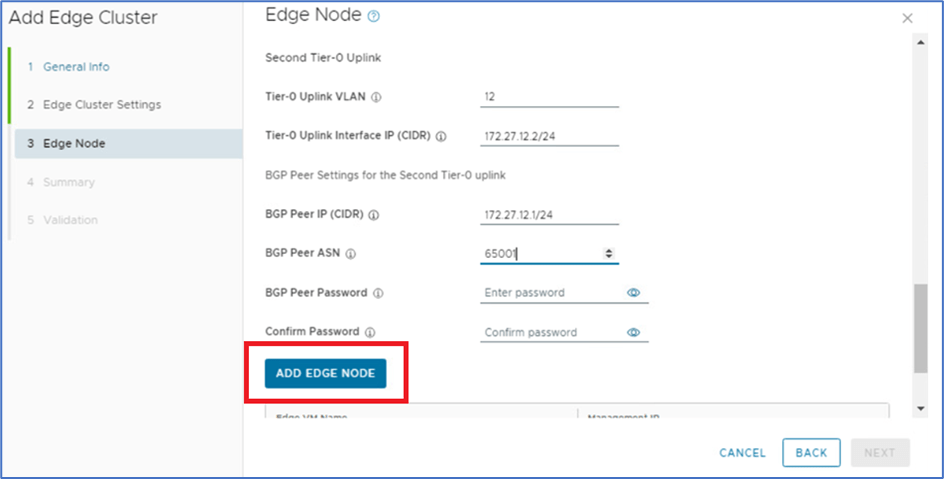
Figure 14 : BGP Configuration for Edge Node

Figure 15 : Edge Node Configuration
Click on ADD MORE EDGE NODES to add additional Edge Nodes.
Note: To deploy edge cluster minimum 2 Edge Nodes are required.
Add Details for Edge Nodes 2 for NSX-T Edge Cluster.
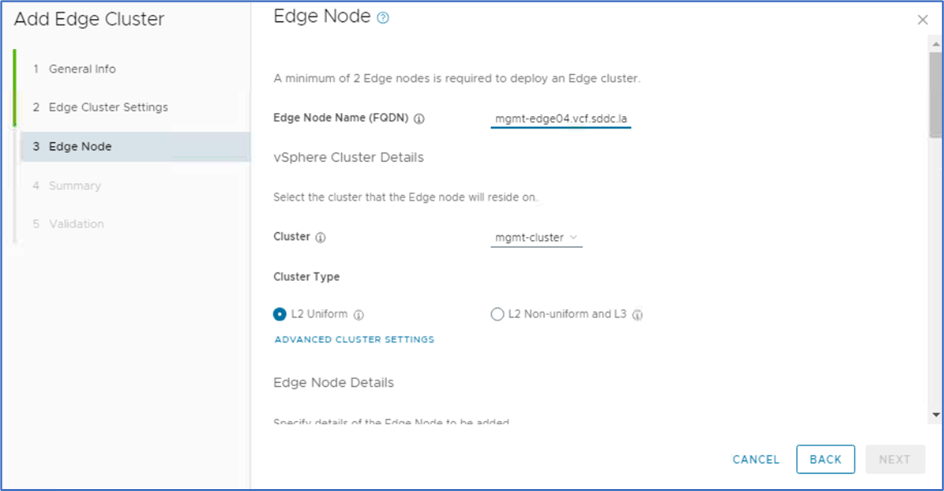
Figure 16 : Edge Node VM Configuration
Validate that both Edge Nodes has been added successfully.
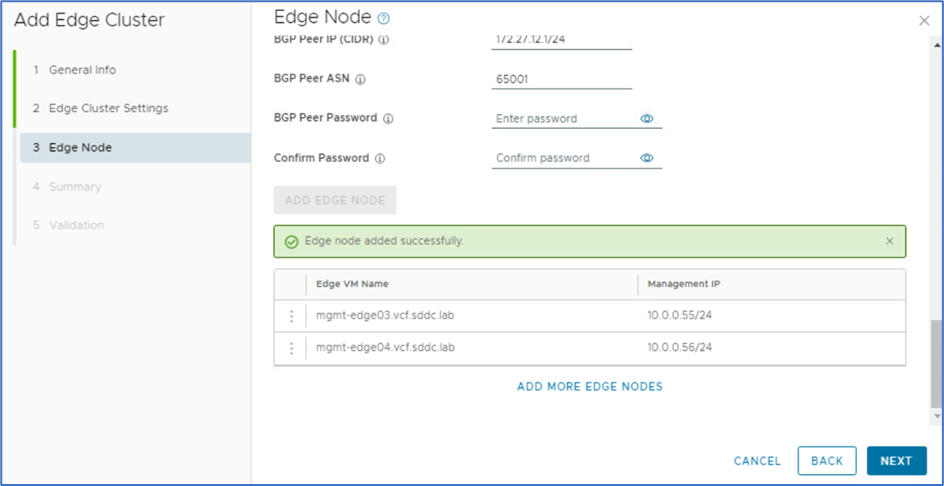
Figure 17 : Validate Edge Nodes
Click on NEXT to process further to Summary screen to validate all configuration.
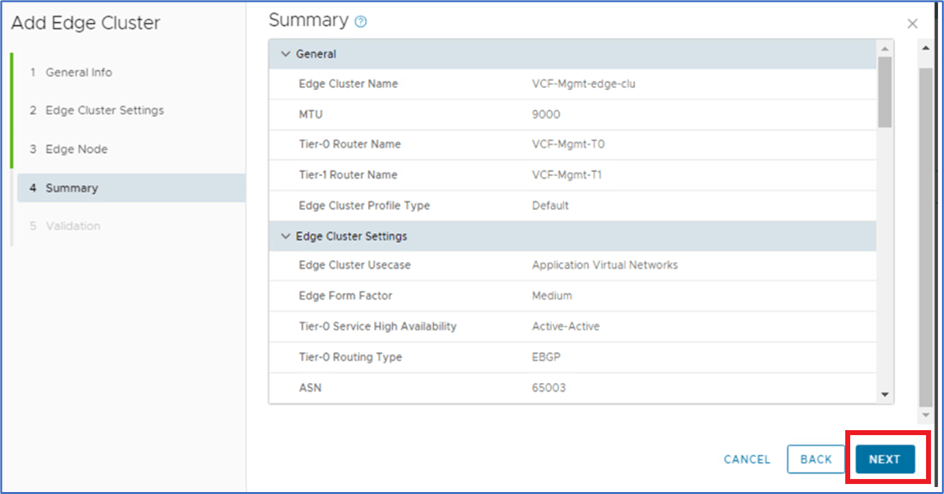
Figure 18: Review Edge Cluster Configuration
Click on NEXT for Validation process. SDDC manager will take approx. 15 minutes to validate all configuration.
Note: In case of any error, Remediate specific EDGE node configuration and restart Validation task.
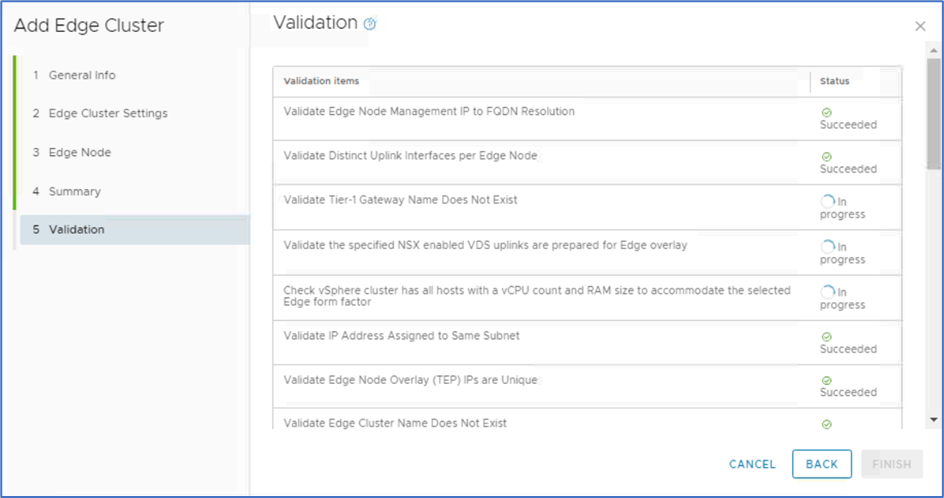
Figure 19 : Edge Cluster Configuration Validation
Once Validation is completed, Click on FINISH to start deployment of EDGE CLUSTER.

Figure 20: Click on FINISH to initiate Deployment Workflow
SDDC Manager will initiate multiple task which can be monitored from SDDC recent tasks.
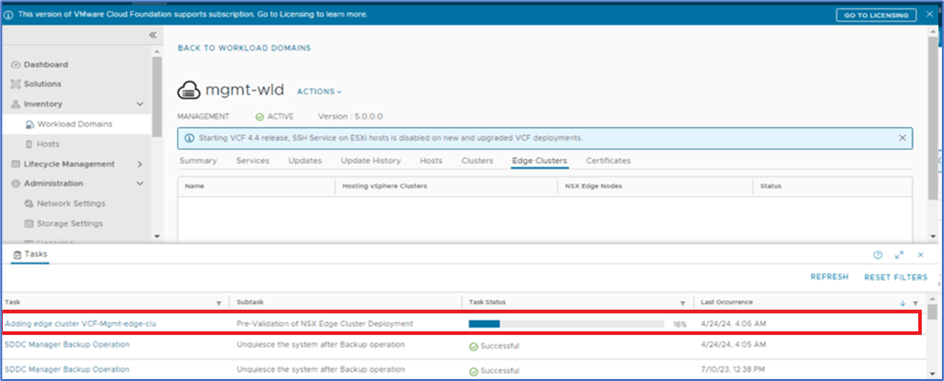
Figure 21: SDDC Manager Reacent Tasks
To get more detailed information about tasks click on Task name and monitor.
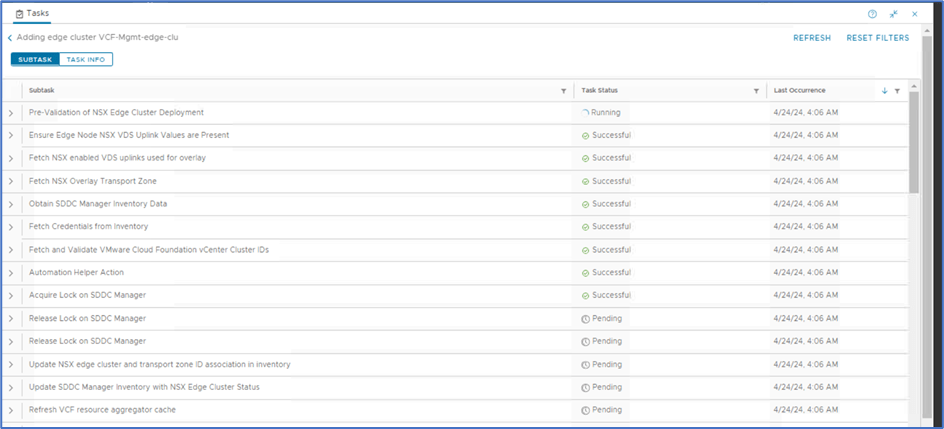
Figure 22 : Detailed information for workflow tasks
Once All those tasks has been completed. SDDC manager will deploy below.
- NSX-T Edge VMs
- NSX-T VLAN backed transport zone for Edge Nodes
- Overlay Transport Zone
- Uplink segments for Edge Node (VLAN backed)
- Trunk dVpg in VDS
- Tier-0 and Tier-1 router
- NSX-T Edge cluster
Validation
Edge Cluster in SDDC manager
Login to SDDC manager >> Click on Workload domain >> Management domain >> Edge cluster
Validate that EDGE cluster is available with name provided during configuration.
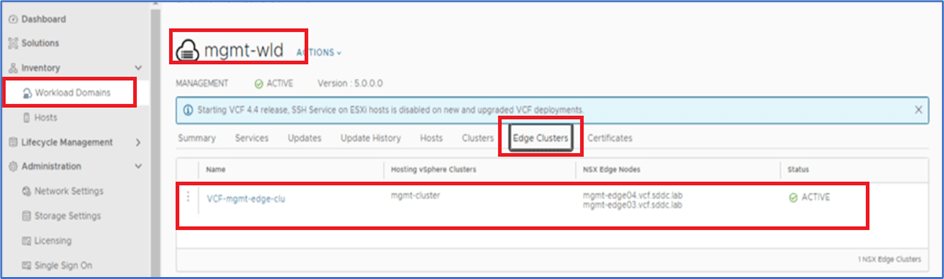
Figure 23 : Edge Cluster Validation in SDDC Manager
EDGE VMs & Cluster in NSX-T GUI
Login to NSX-T Manager GUI >> SYSTEM >>NODES and validate that 2 Edge VMs are deployed with FQDN provided during configuration and Node status is UP.
Note: Perform troubleshooting if any issue occurs during deployment
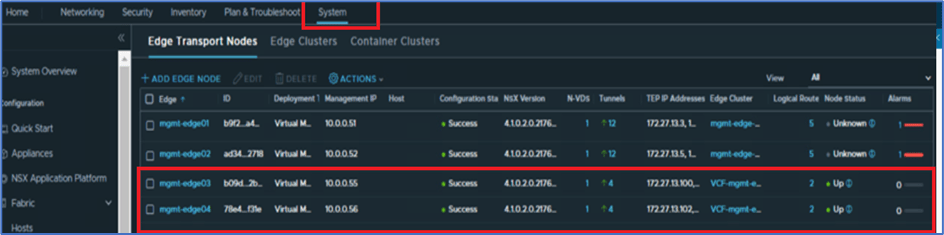
Figure 24 : EDGE VM validation from NSX-T GUI
Click on Edge clusters to validate that Cluster is created as per configuration.

Figure 25 : Edge Cluster Validation
Login to NSX-T GUI >> System >> Profiles >>Uplink Profile.
SDDC create Uplink Profile with TEP VLAN and naming convention “VCF-edge-Cluster name”
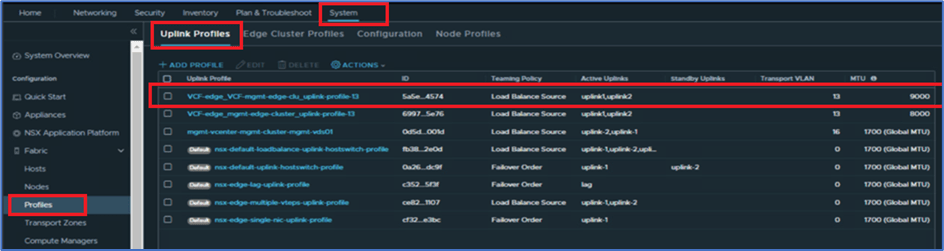
Figure 26: Uplink Profile
Transport Zone
SDDC manager will deploy 1 VLAN backed transport zone with naming conventions
VCF-Edge_EdgeclusteName_Uplink_TZ
Login to NSX-T Manager >> System >> TransportZone to validate
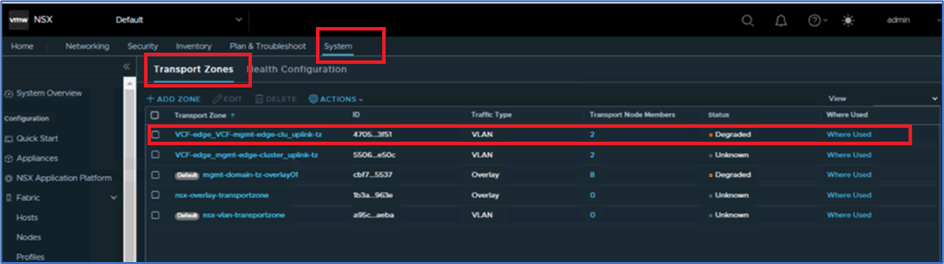
Figure 27: NSX-T Transport Zone
Segments
SDDC Manager will deploy 2 NSX-T VLAN backed segments for Edge Uplinks. VLAN details were provided during configuration in Edge Node window.
To validate, Login to NSX-T Manager >> Networking >> Segment and validate that VLAN Backed Segments which will have Naming Convention “VCF-Edge_EdgeclusteName-Segments-Uplink-VLANID”
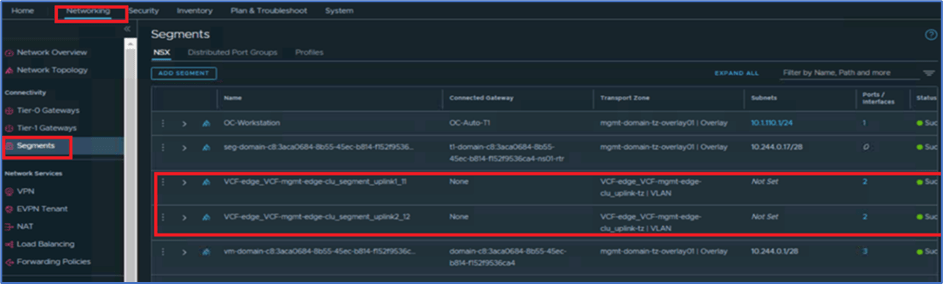
Figure 28: Edge Uplink Segments
Tier-0 and Tier-1 Routers
SDDC Managers deploy Tier-0 and Tier-1 routers while deploying Edge cluster and BGP/Static routing also get configured.
To validate login to NSX-T Manager >> Networking >> Tier-0 or Tier-1 routers
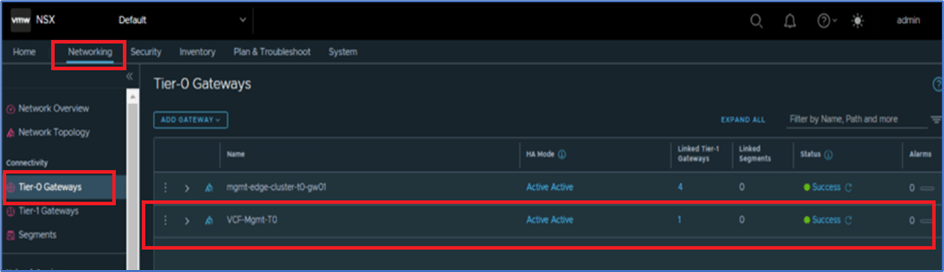
Figure 29 : NSX-T Tier-0 Router

Figure 30: NSX-T Tier-1 Router
Resource Pool and Edge VM
SDDC Manager deploy Edge VMs in Vcentre with resource Pool. To validate, login to vcenter , expand cluster which was selected during deployment .
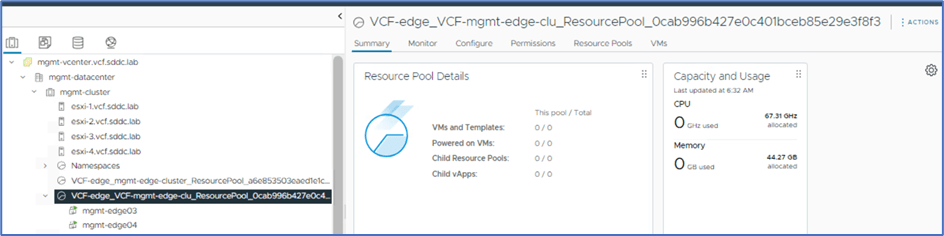
Figure 31: Resource Pool
Trunk dvPG
Login to Vcenter and navigate to networking. Validate that there are 2 dvPG with TRUNK configuration .
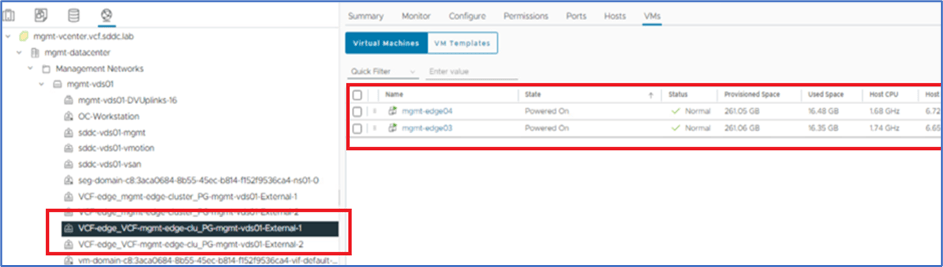
Figure 32: Trunk dVPG in Vcenter
Conclusion
In this blog , We have deployed Edge cluster for management domain in VCF with 2 Edge Node VMs. After this you can deploy AVN to support vRealize suite deployment. Please refer blog AVN deployment (https://bytestuffs.com/2024/04/26/avn-deployment-in-vcf/) for further details

 Welcome to Bytestuffs.com
Leave a comment